Showing posts with label transfer android contacts. Show all posts

Thursday, February 20, 2014

How to Transfer Contacts between Android and Computer

How to Transfer Contacts between Android and Computer


The excellent mobile operating system- Android have been famous for a few years , more and more cell phone and tablet manufactures uses Android as they standard operating system. This humanized operating system help most people finish their jobs and make their life more comfortable . So Android is a great operating system that we all agreed. From Android 1.5 to 4.5 version,more and more Android devices came up to the world and provided customers more choices. If you have a Android device already, its out of necessity to keep your data safe. Make a backup is good idea, but Google has never provide Android users a official software to manage or back up Android devices precious data. 

Thankfully, with the help of 
Android Transfer, You can backup Android contacts to computer and then import/export contacts between Android and computer when you accidentally delete or lose some important contacts on your Android phone or you want to export contacts to PC.

Click to
 backup your Android contacts and import/export them with computer.
You can download Android Transfer from here: Android Transfer windows version, Android Transfer Mac version

Part 1: Backup Android contacts to computer


Step 1 Set up your Android phone

To get started, download and install this backup contacts Android manager on your PC. After finishing the installation, you ought to run it. Connect your Android phone to your PC via a USB cable or via Wi-Fi. This program will automatically detect your device and shows it in the primary window. Then click "Contacts" tab on the left pane to enter the contact management window.


Step 2 Back up Android contacts

The contact management window is as below. Select your wanted contacts and then click "Import/Export" button. This will bring up a drop-down list. choose "Export selected contacts to computer" or "Export all contacts to computer". Then, a pull-down list appears on the right, you can backup contacts to Outlook Express, Outlook 2003/2007/2010, vCard file, Windows Address Book, and Windows Live Mail.


Part 2: Import/Export Android contacts easily

Import Android Contacts from computer

Click on the "Contacts" tab to enter the contact management window as below. Then hit the "Import/Export" button to navigate to and import your contacts from vCard, Outlook, Windows Address book and Windows Live Mail.
Or, you can directly sync contacts to your Android phone as long as you have save them on your Gmail, Facebook, and account like that.
 

Well, that's the guide about how to import/export Android contacts. You can backup more such as SMS, photos, music, apps, videos and more.

More guide of Android and iPhone:

How to transfer Android contacts to iPhone?

How to backup Android Phone SMS to Computer

How to Transfer Android data to computer


How to transfer Android contacts to iPhone?

It’s no difficult to transfer contacts from Android to iPhone using Phone Contacts Transfer. This time, we use a Motorola Android and an iPhone 5s as an exampleIts lucky that this Phone Contacts Transfer works for all Android phones such as Samsung Galaxy Note, Motorola Droid, HTC Oneetc and for all iPhone models like 5C, 5, 4S, 3GS … running iOS 7 or earlier.


Unlike other Phone to Phone TransferPhone Contacts Transfer enables you to transfers all kind of data such as photos, e-mails, addresses, notes, phone number types and more from Android to iPhone.

Phone Contacts Transfer will give you more surprise: You can not only copy data from Android to iPhone but also transfer data from iPhone to Android, all you need is just a single click-“flip”at the top of the window of Phone Contacts Transfer.

Now next you will learn how to transfer Android contacts to iPhone with the help of Phone Contacts Transfer.

Here we take an iPhone 5S and an Android phones(Motorola) as an example to illustrate the transfer process. Firstly, download and install the Phone Contacts Transfer on your computer.

How to transfer Android contacts to iPhone?


Step 1: Running Phone Contacts Transfer on computer.

After download and install the program on your computer, then run the Phone Contacts Transfer and you will see the primary window as the below picture.


Step 2: Connect your iPhone 5S and Motorola Phone with PC


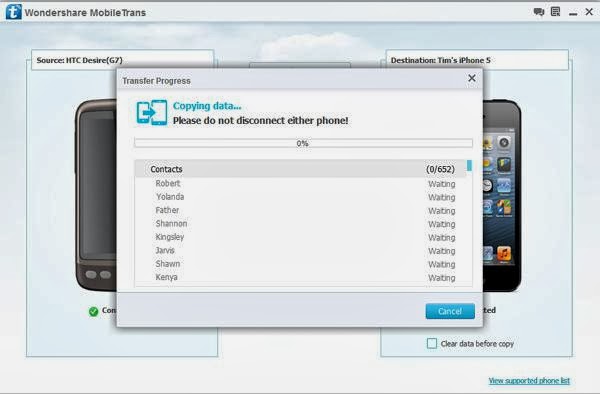
Connect your iPhone and Motorola phone with your PC. When you finish finished connection, Mobile Contacts Transfer will automatically detect your phones.Then if you want to clear your Android phone, the destination phone, click the bar "Clear data before copy".


Note: Please make sure that you have installed iTunes on your computer; if not, install it firstly.

Step 3: Transfer contacts from Android phone to iPhone 5S


In the transfer window, select “Contacts” and click “Start Copy”. Do not disconnected phones during the contacts transferring process.


More tutorials about Android phone and iPhone:

How to backup Android Phone SMS to Computer

How to Recover Lost/Deleted Samsung GALAXY Note 3 Data